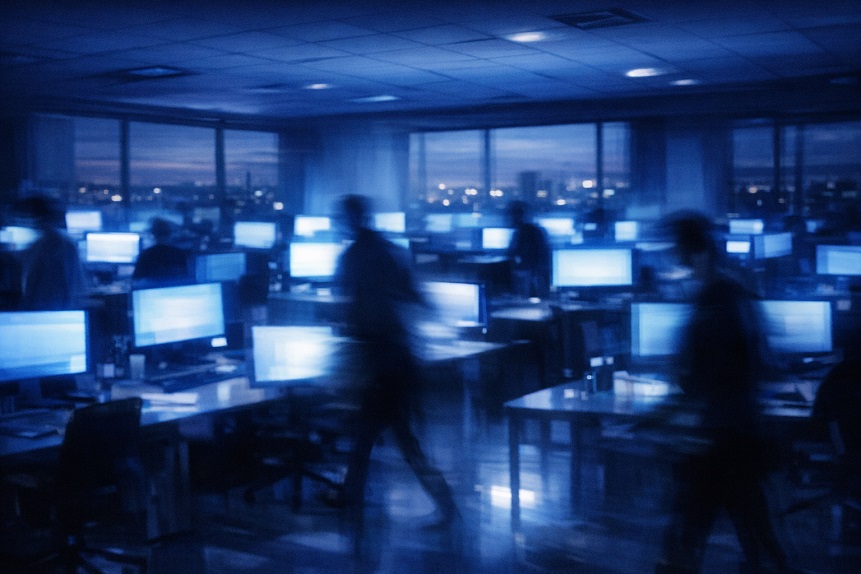
Walk into most offices and the lighting story is the same: banks of cool white fluorescent or LED panels overhead, screens set to their factory-default brightness, and windows that alternate between flooding the room with glare and being fully blocked by blinds. The people working in these environments often assume that eye discomfort is simply part of the deal with screen work. Frequently, it is mostly a deal with bad lighting that nobody has bothered to renegotiate.
Lighting is one of the most underestimated contributors to screen-related eye strain, and one of the most fixable. Unlike the inherent visual demands of near-focus screen work, which require deliberate break strategies and nutritional support to manage, lighting problems are largely environmental and can often be resolved with a combination of simple adjustments and modest equipment changes. The eyes adapt to poor lighting conditions rather than complaining loudly about them, which makes bad lighting easy to overlook as a source of fatigue until you experience a well-lit workspace and notice the difference.
Getting workspace lighting right involves understanding three distinct problems: overall light level relative to the screen, light direction and shadows, and the color quality of the light sources. Each contributes to eye comfort in its own way.
Ambient Light Level: Why Matching Matters More Than Brightness
The most important principle in workspace lighting is not achieving a particular brightness level but achieving the right relationship between your screen and the room around it. This concept is called luminance balance, and getting it wrong is the most common lighting mistake in screen-heavy environments.
The Problem With High-Contrast Environments
When a bright screen sits in a dark room, or a dim screen sits in a brightly lit room, the eye must constantly adapt as it moves between the screen and the surrounding environment. This adaptation is not instantaneous. The pupil dilates and contracts, the visual system recalibrates its sensitivity, and over the course of a working day these micro-adjustments accumulate into a form of fatigue that feels like general eye tiredness without any specific identifiable cause. Many people who work in the dark with a bright screen, thinking this is better for their eyes because the room feels calm, are actually creating one of the worst possible luminance balance conditions.
The practical goal is for the areas immediately surrounding your screen to be lit at roughly half to two-thirds the brightness of the screen itself. This minimizes the adaptation demand when your gaze moves between the screen and the background. A simple way to check: if the wall behind your monitor is significantly darker than your screen when viewed from your normal working position, add some gentle backlighting behind the monitor, a small lamp or LED strip pointed at the wall works well. This reduces the apparent brightness of the screen relative to its background without dimming the screen itself.
Natural Light: An Asset and a Hazard
Natural daylight is the highest quality light source available for workspace use. Its broad spectrum supports good color rendering, its variation across the day provides visual interest for the eye, and there is reasonable evidence that exposure to natural light during the workday supports mood and alertness. The problem is that direct sunlight and uncontrolled window glare are among the most potent sources of screen-related discomfort.
The solution is not to block natural light entirely but to control it. Position the monitor perpendicular to windows rather than facing them or having windows directly behind the screen. Sheer or diffusing window coverings allow daylight in while eliminating direct sun spots and reducing the contrast between bright sky and the room. On high-glare days, adjustable blinds let you manage the light level without sacrificing it entirely. A workspace with good access to diffused natural light, managed to avoid direct glare, is consistently more comfortable for sustained screen work than one relying entirely on artificial lighting.
Overhead Lighting: What Most Workspaces Get Wrong
Standard overhead lighting, whether fluorescent tubes or modern LED panels, is designed for general illumination rather than for screen work environments. Several characteristics of typical overhead lighting make it poorly suited to sustained computer use without modification.
The Glare and Reflection Problem
Overhead lights positioned above and behind a seated worker often reflect directly in the screen surface, creating a competing light source that the eye has to work around when reading or viewing content. This is particularly pronounced with glossy screen surfaces. Even without a visible reflection, overhead lights that fall within the upper visual field create a glare source that the eye is aware of peripherally, adding to the fatigue load over a long session.
Repositioning overhead lights to the side rather than directly above and behind the monitor, or switching to indirect overhead lighting that bounces off the ceiling rather than shining directly downward, eliminates most of this problem. In home office environments where a single overhead fixture is the primary light source, a floor lamp or table lamp placed to the side and slightly behind the monitor position provides more directional control and tends to produce a more comfortable working environment than ceiling lighting alone.
Flicker and Color Quality in Artificial Lighting
Lower-quality fluorescent and LED lights can produce a subtle flicker at frequencies that the conscious mind does not register as flicker but that the visual system responds to with additional processing effort. This is more common in older fluorescent fixtures and in very inexpensive LED bulbs. High-quality LED lighting with a high Color Rendering Index (CRI of 90 or above) and flicker-free certification produces a more stable and visually comfortable light source. The color temperature of the light source also matters: cool white lighting above 5000K creates a brighter, more alerting environment but can increase glare sensitivity and feels harsher during long sessions. Warm white or neutral white lighting in the 3000K to 4000K range tends to produce a more comfortable sustained work environment for most people.
Task Lighting: When and How to Use It
Task lighting, a dedicated light source aimed specifically at a physical work surface like a desk or document, is useful when screen work alternates with paper-based tasks. The challenge is that poorly placed task lighting creates its own set of problems.
Avoiding Task Light Glare on Screen
A desk lamp that shines toward the screen rather than onto the desk creates a glare source that competes with the screen content. Task lighting should be positioned to illuminate the physical work surface, typically from the side opposite to your writing hand to avoid casting hand shadows, while not being aimed at the screen or falling within your normal line of sight to the monitor. A lamp with a directional shade that focuses light downward onto the desk rather than spreading it into the room is the most versatile option for mixed screen and paper work environments.
Backlighting as a Low-Cost Luminance Fix
One of the most effective and least expensive lighting improvements for screen workers is a small LED strip or light placed behind the monitor, facing the wall. This bias lighting, as it is sometimes called in display enthusiast circles, raises the background brightness behind the screen without adding any direct light to the eyes or creating screen reflections. It reduces the luminance contrast between the screen and the wall, which is one of the primary drivers of the eye fatigue that comes from working in a dark room with a bright screen. A warm-white LED strip available for a few dollars produces a meaningful and noticeable improvement in eye comfort during long evening sessions.
Screen Glare: Finding and Fixing the Specific Sources
Glare deserves its own systematic attention because it operates as a hidden drain on visual comfort. Unlike brightness that is obviously too high, glare sources are often in peripheral vision or at angles that the eye perceives as discomfort without identifying the cause clearly.
Identifying Your Glare Sources
A simple method for identifying glare sources: sit at your workstation in your normal working position, turn the monitor off so the screen is dark and reflective, and observe what appears in the screen surface. Any light source visible in the reflection is contributing to glare during use, even if you have stopped consciously noticing it. Common culprits are windows in front of or beside the monitor, ceiling light fixtures above and behind the seated position, and desk lamps aimed incorrectly. Each one identified is a specific, fixable problem rather than a vague sense of visual discomfort.
Matte Screens and Anti-Glare Solutions
Monitors with matte screen surfaces scatter incoming light rather than reflecting it directly, significantly reducing visible reflections. If your current monitor has a glossy surface and glare is a significant problem, a matte anti-glare screen protector provides a meaningful improvement. Monitor hoods, which shade the screen from overhead and side light sources, are a more complete solution used in professional color-critical environments and work well for high-glare office situations. These are more specialized solutions than most home users need, but they are worth knowing about if repositioning and lighting adjustments are constrained by the workspace layout.
A Well-Lit Workspace Is a Long-Term Investment
The improvements described here are not dramatic redesigns. Most of them involve repositioning existing light sources, adjusting window coverings, and making a few inexpensive additions to the workspace. The return on that investment is measured in every hour of screen work that follows, in less accumulated fatigue, fewer headaches, and a visual system that is not constantly working against its environment.
Lighting adjustments work best alongside the monitor setting optimizations covered in our guide to monitor settings for eye health, since the two are closely related. And for the aspect of screen eye health that environmental changes cannot fully address, the long-term nutritional protection of the macular pigment, our article on nutrition and screen eye protection covers what the research supports.